
We rely on email to deliver our newsletters as well as notices of our activities. In order to reach your Inbox, our emails need to get past a large number of spam filters. First, our email provider checks all outgoing messages we send to make sure they are not spam. Your email provider filters incoming messages once more, and finally your “email client” (the software application you use to read and respond to emails) will examine the message one last time before releasing to your inbox or sending it to your spam folder.
We use Mail Chimp to distribute our emails and we’ve followed Mail Chimp’s advice on how to reduce the chance that our emails are marked as spam, by implementing the SPF, DKIM and DMARC authentication protocols.
If you are having trouble receiving our emails, there is something you can do. All our emails come from info@historicroses.org and you can add this address to something called your “safe senders list”. This can be done in several ways:
If you have successfully received a message from the HRG via MailChimp, then scroll down to the bottom of the message
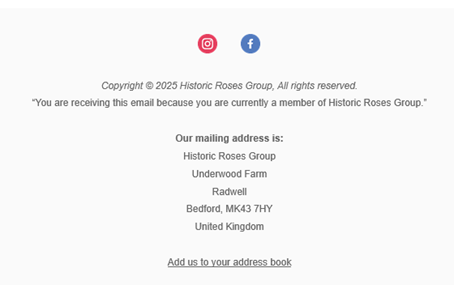
and click on “Add us to your address book”. This will create a file with contact details for the HRG that you can add to your address book.
If that doesn’t work, there are other ways to add the HRG to your contacts. How you do this depends on your email setup, but we’ve created this page that on the Society’s website that explains how it’s done for some of the more popular email services.
- If you use one of the (many!) versions of Outlook (New Outlook, Classic Outlook, Outlook on the web or Outlook.com) you can find instructions from Microsoft here and a video demonstration here.
- If you use Google’s Gmail, you can find out how to create a safe senders list here and you can watch a tutorial showing you how to add email addresses to your safe senders list here.